
Appearance
Zones 
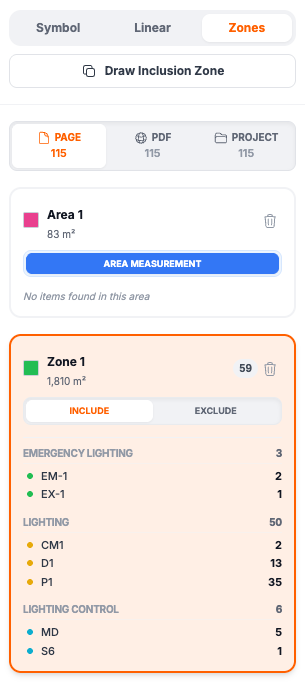
Zones help you filter counts by area or measure floor/wall space on your PDF plans. Draw polygons to include or exclude symbols from your takeoff, or to calculate area measurements.
Zone Types
Plan Count supports three types of zones:
| Type | Purpose | Use Case |
|---|---|---|
| Inclusion | Only count symbols inside | Separate counts per apartment, room, or section |
 Exclusion Exclusion | Ignore symbols inside | Skip plant rooms, storage areas, or non-relevant spaces |
 Area Area | Measure floor/wall space | Calculate m² or ft² for flooring, paint, ceiling tiles |
Drawing Zones
Inclusion & Exclusion Zones
- Press
Zor select the Zone tool - Click to place vertex points around the area
- Double-click or click the first point to close the polygon
TIP
For rectangular zones, just click the four corners. For complex shapes, add more points.
Area Zones
- Press
Mor select the Area Zone tool - Click to place vertex points around the area to measure
- Double-click or click the first point to close the polygon
INFO
Area zones require at least 3 points to form a valid polygon.
Inclusion Zones
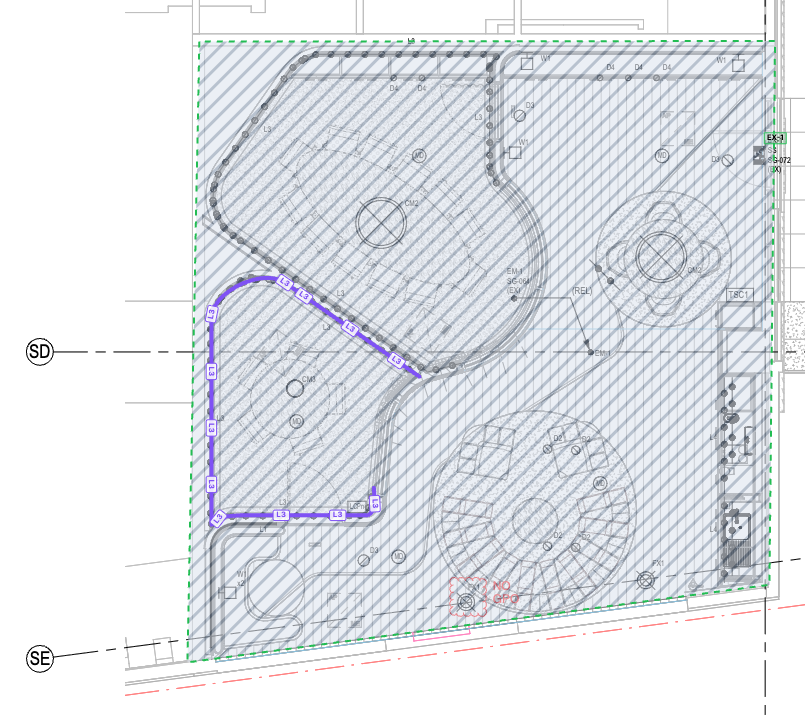
Inclusion zones filter your counts to only include symbols inside the zone.
Use Cases
- Apartment takeoffs: Draw a zone around each apartment to get per-unit counts
- Room breakdown: Create zones for each room to see room-by-room quantities
- Section pricing: Divide a floor into sections for phased billing
How It Works
- Draw an inclusion zone around an area
- The takeoff panel shows counts filtered to that zone
- Switch between zones to see different filtered views
Exclusion Zones
Exclusion zones remove symbols from your counts.
Use Cases
- Plant rooms: Exclude mechanical rooms with complex symbology
- Existing work: Skip areas that are already installed
- Out of scope: Ignore sections not in your contract
How It Works
- Draw an exclusion zone around the area to skip
- Any symbols inside are excluded from counts
- Exclusion zones take priority over inclusion zones
Area Zones
Area zones calculate the real-world area of a polygon based on your PDF's scale setting.
Setting Up
- Set the scale first (bottom of control panel)
- Choose units: Metric (m²) or Imperial (ft²)
- Draw the zone around the area to measure
Where Areas Appear
- On-screen legend: Shows zone name and formatted area
- PDF export: Displays zone name and area at the zone center
- CSV export: Outputs numeric area value for pricing formulas
Use Cases
- Flooring quotes: Measure floor area for carpet/tile pricing
- Paint estimates: Calculate wall area for paint coverage
- Ceiling tiles: Determine suspended ceiling area
Area Calculation
Plan Count uses the Shoelace formula to calculate polygon area:
Real Area = PDF Area × (Scale Ratio)² × 0.0254²

Example at 1:100 scale:
- 50,000 square pixels on PDF
- = 50,000 ÷ 72² square inches on paper = 9.6 sq inches
- = 9.6 × 100² real square inches = 96,000 sq inches
- = 96,000 × 0.0254² = 15.8 m²
Editing Zones
Select a Zone
- Use the Select tool (
S) and click inside a zone - Or click the zone name in the takeoff panel
Rename a Zone
- Select the zone
- Edit the name in the takeoff panel
- Changes save automatically
Change Zone Type
For inclusion/exclusion zones:
- Select the zone
- Toggle the type in the zone properties panel
Delete a Zone
- Select the zone
- Press Delete or click the trash icon
Move Vertices
- Select the zone
- Drag any vertex point to reposition it
- Area recalculates automatically for AREA zones
Zone Visibility
- Toggle visibility: Click the eye icon next to a zone in the takeoff panel
- Hidden zones: Still affect counts but don't render on the PDF
- Export behavior: Hidden zones are excluded from PDF export
Keyboard Shortcuts
| Key | Action |
|---|---|
Z | Select ZONE tool (inclusion/exclusion) |
M | Select AREA ZONE tool |
V |  Select tool (for editing zones) Select tool (for editing zones) |
Delete | Delete selected zone |
Escape | Cancel zone drawing |
Tips
Best Practices
- Set your PDF scale before drawing AREA zones
- Name zones descriptively (e.g., "Unit 101", "Ground Floor", "East Wing")
- Use inclusion zones for detailed breakdowns
- Use exclusion zones sparingly - only for areas truly out of scope
Common Issues
Zone not closing?
- Double-click or click near the first point to close
- Zones need at least 3 points
Area showing wrong units?
- Check your unit setting (Metric/Imperial) in the scale panel
- Verify the scale ratio matches your PDF
Counts not updating?
- Make sure the zone is visible (eye icon)
- Check zone type (inclusion vs exclusion)
Zone overlapping issues?
- Exclusion zones take priority over inclusion zones
- If a symbol is in both, it's excluded