
Appearance
Quick Start
Get up and running with Plan Count in 5 minutes.
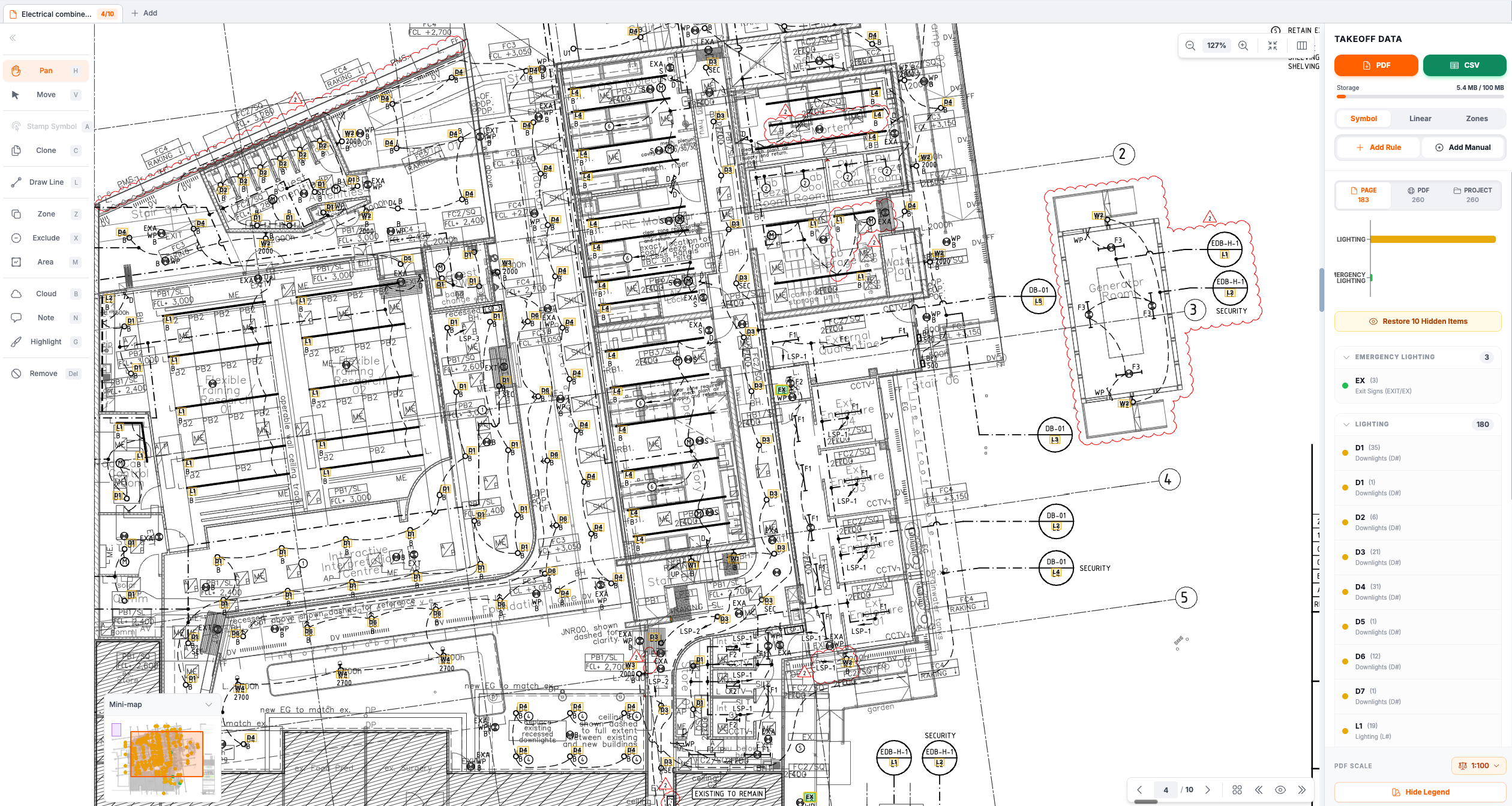
Step 1: Upload a PDF
- Go to plancount.ai and sign in
- Click Upload PDF or drag and drop your file
- For multi-page PDFs, select the pages you want to process
- Click Continue to load the PDF
TIP
Select only the pages you need to save credits and processing time.
Step 2: Set Your Scale
Before measuring, configure your PDF's scale:
- Find the Scale section at the bottom of the control panel
- Enter the scale ratio (e.g.,
100for 1:100) - Choose Metric (meters) or Imperial (feet)
Step 3: Run Symbol Detection
- Click the Symbol tab in the takeoff panel
- Click Discover Rules to auto-detect patterns
- Enable the rules that match your symbols
- Add custom rules for anything missed
Step 4: Review and Edit
- Pan: Hold Space + drag, or use the Pan tool
- Zoom: Scroll wheel, or use zoom controls
- Stamp: Press
Ato manually add symbols (after selecting a symbol type) - Erase: Press
Eto remove false detections
Step 5: Add Zones (Optional)
To get counts by area:
- Press
Zfor zone tool - Click to draw a polygon around an area
- Name the zone (e.g., "Unit 101")
- Repeat for other areas
Step 6: Export
- Click Export PDF for marked-up drawings
- Click Export CSV for spreadsheet data
- Or click Share to create a view-only link
Next Steps
- Symbols - Learn about detection rules
- Linear - Measure cable runs
- Zones - Filter counts by area
- Keyboard Shortcuts - Speed up your workflow