
Appearance
Navigating Your PDF
Plan Count provides multiple ways to navigate around your PDF plans - from zooming and panning on a single page to moving between pages in multi-page documents.
The Mini-Map
The mini-map in the top-right corner shows a thumbnail of the entire current page. The orange rectangle indicates your current viewport - the area you're viewing on screen.
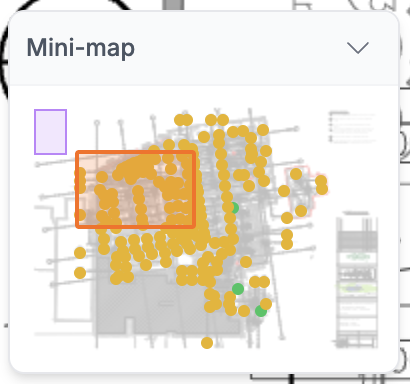
Using the Mini-Map
- See where you are: The orange box shows your current position on the page
- Click to jump: Click anywhere on the mini-map to instantly move your viewport there
- Drag to pan: Click and drag the orange box to smoothly pan around the page
- Collapse/expand: Click the header to collapse the mini-map when you need more screen space
TIP
The mini-map is especially useful on large drawings where you're zoomed in close - it helps you stay oriented and quickly jump to different areas.
Zooming
Mouse Wheel Zoom
The fastest way to zoom:
- Scroll up: Zoom in (toward cursor position)
- Scroll down: Zoom out (from cursor position)
The zoom centers on your cursor position, so point at the area you want to examine before scrolling.
Zoom Controls
The floating zoom controls (bottom-left) provide precise zoom options:
| Button | Action |
|---|---|
| + | Zoom in one step |
| - | Zoom out one step |
| Fit | Fit entire page to screen |
Double-Click Zoom
Double-click anywhere on the PDF to zoom in 2x centered on that point. This is great for quickly examining details.
Browser Zoom
You can also use your browser's built-in zoom:
- Cmd/Ctrl + Plus: Zoom browser in
- Cmd/Ctrl + Minus: Zoom browser out
- Cmd/Ctrl + 0: Reset browser zoom
Browser zoom affects the entire interface including the mini-map and control panels, which can be useful if you need everything larger.
Panning (Moving Around)
Pan Tool
Press H or select the Pan tool from the toolbar. Your cursor changes to a hand icon.
- Click and drag: Grab the PDF and drag to move around
- Works at any zoom level
- Best for precise positioning
Scroll Wheel Panning
When not zooming, you can pan with the scroll wheel:
- Scroll up/down: Move vertically through the page
- Shift + Scroll: Move horizontally (on some systems)
Mini-Map Panning
As mentioned above, drag the orange viewport box in the mini-map to pan smoothly around the page.
Keyboard Panning
- Arrow keys: Nudge the view in that direction
- Space + drag: Temporarily activate pan mode (like in design software)
Multi-Page Navigation
For PDFs with multiple pages, the page controls toolbar appears in the bottom-right corner.

Page Controls Toolbar
| Button | Icon | Action |
|---|---|---|
| Previous | < | Go to previous page |
| Page Input | 3 / 12 | Shows current page / total - click to type a page number |
| Next | > | Go to next page |
| Thumbnails | Grid icon | Open thumbnail strip |
| Skip Back | << | Jump to previous non-excluded page |
| Exclude Toggle | Eye icon | Hide/show current page |
| Skip Forward | >> | Jump to next non-excluded page |
Scrolling Between Pages
With continuous scroll view, use the mouse wheel to scroll through the entire document:
- Scroll down: Move toward next page
- Scroll up: Move toward previous page
The view smoothly transitions between pages as you scroll past page boundaries.
Direct Page Jump
Click the page number in the toolbar (e.g., 3 / 12) to type a specific page:
- Click the page number input
- Type the page you want
- Press Enter to jump, or Escape to cancel
Thumbnail Strip
Click the grid icon in the page controls to open the thumbnail strip:
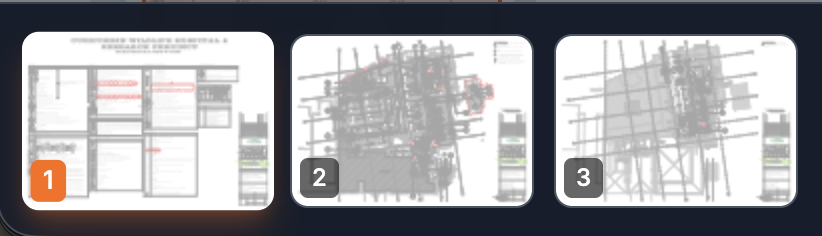
- Shows all pages as visual previews
- Current page has orange border
- Excluded pages show striped overlay
- Click any thumbnail to jump to that page
- Press Escape or click outside to close
Knowing What Page You're On
The page controls toolbar always shows your current page position:
- Page indicator: Shows
current / total(e.g.,5 / 24) - Thumbnail strip: Current page highlighted with orange border
- Mini-map: Shows the current page thumbnail
Excluding Pages
Some PDFs contain pages you don't need (cover sheets, specifications, general notes). You can exclude pages to hide them from your workflow without permanently removing them.
Why Exclude Instead of Delete?
- Non-destructive: Pages stay in the PDF for reference
- Reversible: Include pages again anytime
- Export control: Excluded pages omitted from PDF exports
- Faster navigation: Skip buttons jump over excluded pages
Toggling Page Exclusion
Click the eye icon in the page controls:
| State | Icon | Appearance |
|---|---|---|
| Included | Open eye | Normal - page visible and counted |
| Excluded | Crossed eye (red) | Hidden - diagonal stripe overlay |
When excluded:
- Diagonal stripe overlay appears on the page
- Eye icon turns red with slash
- Page omitted from PDF exports
- Symbol counts excluded from totals
Skip Navigation
The double arrow buttons (<< and >>) skip over excluded pages:
- Skip Back (
<<): Jump to previous non-excluded page - Skip Forward (
>>): Jump to next non-excluded page
This lets you quickly review only relevant pages, automatically skipping hidden ones.
Example: In a 50-page PDF where pages 1-3 (covers) and 21-30 (specs) are excluded:
- From page 20, pressing
>>jumps directly to page 31 - You skip all 10 specification pages instantly
Keyboard Shortcuts
| Key | Action |
|---|---|
H | Select Pan tool |
Page Up | Previous page |
Page Down | Next page |
Home | First page |
End | Last page |
+ or = | Zoom in |
- | Zoom out |
0 | Fit to screen |
Navigation Tips
Working with Large Drawings
- Use Fit to screen to see the whole page
- Use the mini-map to identify the area you need
- Double-click or scroll-zoom to zoom into that area
- Use Pan or mini-map drag for fine positioning
Efficient Multi-Page Workflows
- First pass: Scroll through all pages, excluding irrelevant ones
- Working pass: Use Skip buttons (
<<>>) to move through only working pages - Review: Use thumbnail strip for visual overview and quick jumps
Staying Oriented
If you get lost on a large drawing:
- Check the mini-map to see your position
- Check the page indicator to confirm which page you're on
- Click Fit to screen to see the whole page
- Use thumbnail strip to visually find your location