
Appearance
Export
Export your takeoffs as marked-up PDFs or CSV spreadsheets. Share results with clients, import into estimating software, or archive completed projects.
Export Formats
| Format | Best For |
|---|---|
| Marked-up drawings with legend | |
| CSV | Spreadsheet data for pricing |
The On-Screen Legend
Before exporting, you can preview and configure the legend that will appear on your exported PDF.
Displaying the Legend
- Click the Legend button in the toolbar (or press
G) - The legend overlay appears on the PDF canvas
- Drag it to position where you want it on exports
Legend Contents
The legend displays:
- Symbol counts: Each detection rule with its color and count
- Linear totals: Length measurements and quantities needed
- Zone areas: Calculated area for AREA-type zones
- Color key: Visual reference for each symbol type
Customizing the Legend
- Drag to reposition: Click and drag the legend anywhere on the canvas
- Resize: Drag the corner handles to adjust size
- Toggle visibility: Click the Legend button again to hide
- Per-page settings: Legend position is saved per page
TIP
Position the legend in a clear area of your drawing (like a title block or empty corner) so it doesn't obscure important details when printed.
PDF Export
Generate a new PDF with all your markups overlaid on the original drawings.
What's Included
- Detection rectangles: Colored boxes around each symbol
- Detection labels: Symbol labels inside rectangles
- Zones: Polygon outlines with names
- Annotations: Cloud boxes, text annotations, highlights
- Linear paths: Cable runs and measurements
- Legend: Summary table matching your on-screen configuration
Exported Legend
The legend in your exported PDF matches exactly what you see on screen:
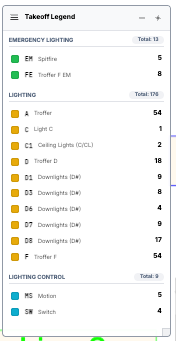
- Position, size, and visibility settings carry over from your on-screen configuration
- Each page can have its own legend position
- Hidden legends won't appear in the export
How to Export PDF
- Configure your legend position and visibility
- Click Export PDF in the control panel
- Choose a filename
- Save the file
PDF Layers
Exported PDFs include named layers for each symbol category, so you can show or hide groups of markups independently in Bluebeam, Adobe Acrobat, or other CAD PDF editors.
Available layers:
| Layer | Content |
|---|---|
| Lighting | Lighting symbol detections |
| Emergency Lighting | Emergency lighting detections |
| Lighting Control | Lighting control detections |
| Power | Power symbol detections |
| Fire | Fire system detections |
| Data | Data/comms detections |
| Security | Security system detections |
| Mechanical | Mechanical detections |
| Unknown | Unclassified detections |
| Legend | The symbol count legend |
| Annotations | Cloud boxes, text notes, highlights |
| Linear | Cable run and linear measurement paths |
All layers are on by default. To toggle them:
- Bluebeam Revu: View → Layers panel, then click the eye icon next to any layer
- Adobe Acrobat: View → Show/Hide → Navigation Panes → Layers
TIP
Use layers to create clean presentation versions — for example, hide all annotation layers to show only the detection overlays, or hide a specific trade category to focus on just electrical or just data.
Page Handling
- Only non-excluded pages are exported
- Rotated pages maintain correct orientation
- Annotations render correctly on rotated pages
CSV Export
Export tabular data for spreadsheet analysis and pricing calculations.
What's Included
Symbol Summary:
| Column | Description |
|---|---|
| Type | Symbol category |
| Name | Rule name |
| Pattern | Detection pattern |
| Count | Total detections |
Linear Summary:
| Column | Description |
|---|---|
| Type | Linear rule name |
| Symbol | Short label |
| Total Length | Meters or feet |
| Unit Length | Per-unit length |
| Units Needed | Quantity to order |
| Path Count | Number of paths |
Zone Areas:
| Column | Description |
|---|---|
| Zone Name | Zone identifier |
| Area | Numeric value (no units) |
How to Export CSV
- Click Export CSV in the control panel
- Choose a filename
- Save the file
- Open in Excel, Google Sheets, or your estimating software
Zone Filtering
If zones are active:
- Counts reflect zone filtering (inclusion/exclusion)
- CSV includes zone-filtered totals
- Area zones export their calculated area
Export Tips
PDF Best Practices
- Position your legend where it won't overlap important content
- Use consistent colors across similar projects
- Hide zones you don't want printed (toggle visibility)
CSV Best Practices
- Area values export without units for easy spreadsheet formulas
- Use the Symbol column for VLOOKUP against price lists
- Import into estimating software for automated pricing
File Naming
Consider a naming convention:
ProjectName_Electrical_Takeoff_v1.pdfProjectName_Counts_2024-01-15.csv
Sharing vs Exporting
| Feature | Export | Share Link |
|---|---|---|
| Recipient needs | PDF reader or spreadsheet | Web browser |
| File size | Larger (embedded PDF) | Small (link only) |
| Updates | Static snapshot | Live (if project updated) |
| Editing | Cannot edit | View-only |
See Sharing Projects for share link details.