
Appearance
Managing Projects
Projects in Plan Count store your PDF files, symbol detections, zones, annotations, and settings. This guide covers how to create, organize, and manage your projects.
Creating Projects
New Project Options
Click New Project from the header or Projects drawer to see creation options:
- Upload PDFs - Create a project by uploading one or more PDFs immediately
- Empty Project - Create a blank project and add PDFs later
Project Names
When you upload a PDF to create a project, the project name defaults to the filename (without extension). You can rename it at any time.
Renaming Projects
To rename a project:
- Click the project name in the Project Context Bar (the bar below the header showing "Project: Your Name")
- A pencil icon appears on hover to indicate the name is clickable
- The Rename Project modal opens with the current name pre-selected
- Type the new name and click Rename
Quick Access
The project name is always visible while working, making it easy to rename whenever needed.
Working with Multiple PDFs
Projects can contain multiple PDF files. Each PDF appears as a tab in the PDF Tab Bar at the top of the viewer.
Adding PDFs
To add more PDFs to your project:
- Click the + Add button at the end of the tab bar
- The Add PDFs modal opens
- Drag and drop files or click to browse
- Select multiple PDFs at once if needed
- Click Add X PDFs to confirm
Files are validated as you select them, showing page counts and file sizes.
Switching Between PDFs
Click any tab to switch to that PDF. The active tab shows:
- Orange document icon
- Current page number (e.g., "3/12")
- The PDF filename
Inactive tabs show:
- Gray document icon
- Total page count badge
Reordering PDFs
Drag and drop tabs to reorder PDFs within your project:
- Click and hold a tab
- Drag it to the desired position
- Release to drop
A visual indicator shows where the tab will be placed.
Removing PDFs
To remove a PDF from your project:
- Hover over the tab to reveal the trash icon
- Click the trash icon
- Confirm the deletion in the popover
WARNING
Removing a PDF also deletes all detections, zones, and annotations associated with that PDF. This cannot be undone.
Tab Hover Information
Hover over any tab to see detailed information:
- Full filename (useful for truncated names)
- Total page count
- Symbol counts grouped by type
Projects Drawer
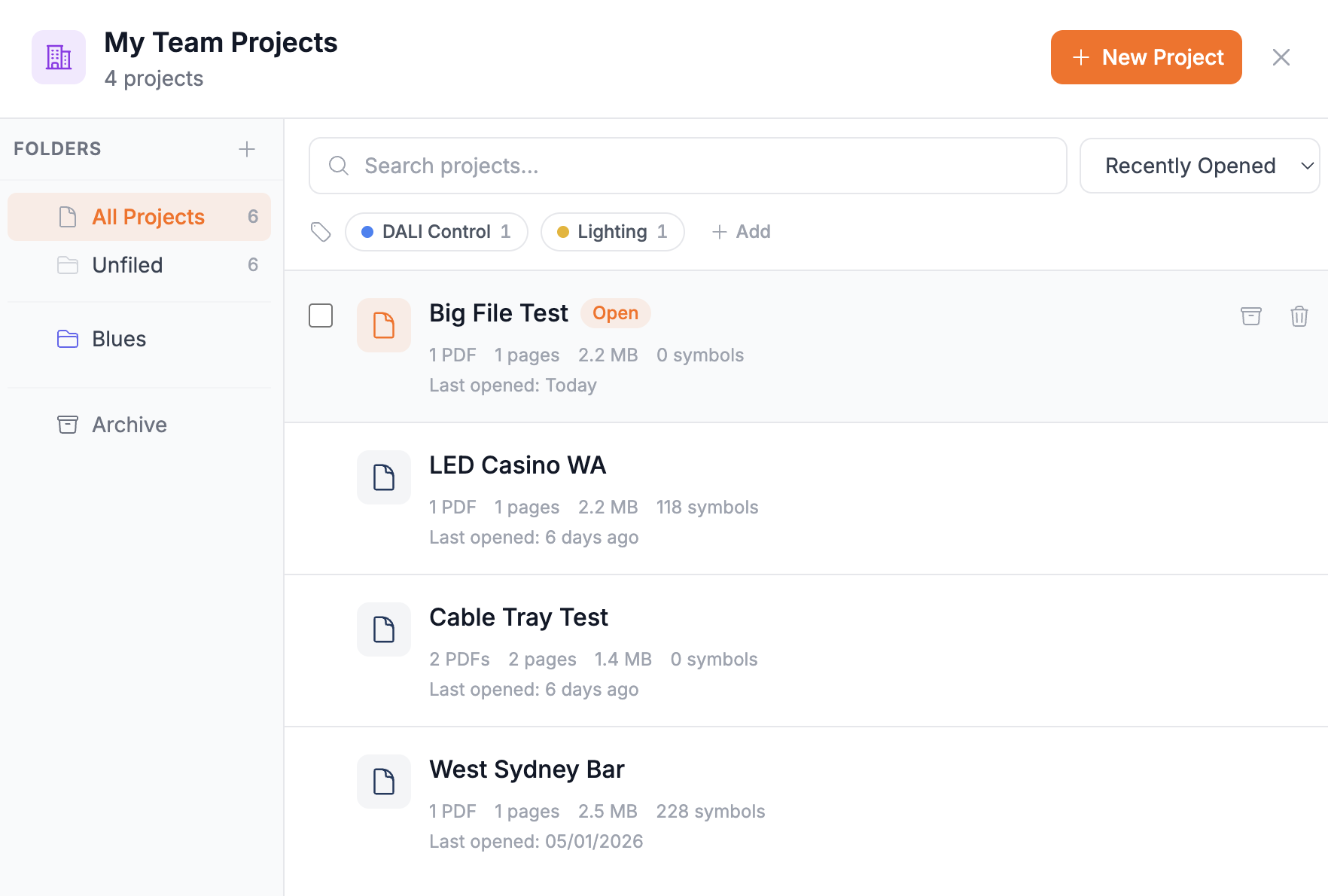
Click the folder icon in the header or press the Projects button to open the Projects Drawer. This is your central hub for managing all saved projects.
Searching Projects
Use the search bar at the top to find projects by name. Search results update as you type.
Sorting Options
Sort your projects list by:
- Recently Opened (default) - Projects you worked on most recently
- Name (A-Z) - Alphabetical order
- Name (Z-A) - Reverse alphabetical
- Date Created - Newest first
- Size - Largest first
Project Cards
Each project card shows:
- Project name
- PDF count and total pages
- File size
- Symbol count
- Last opened date
- Applied tags (colored badges)
Click a project to open it. The currently open project shows an "Open" badge.
Folders
Organize projects into folders for better project management.
Creating Folders
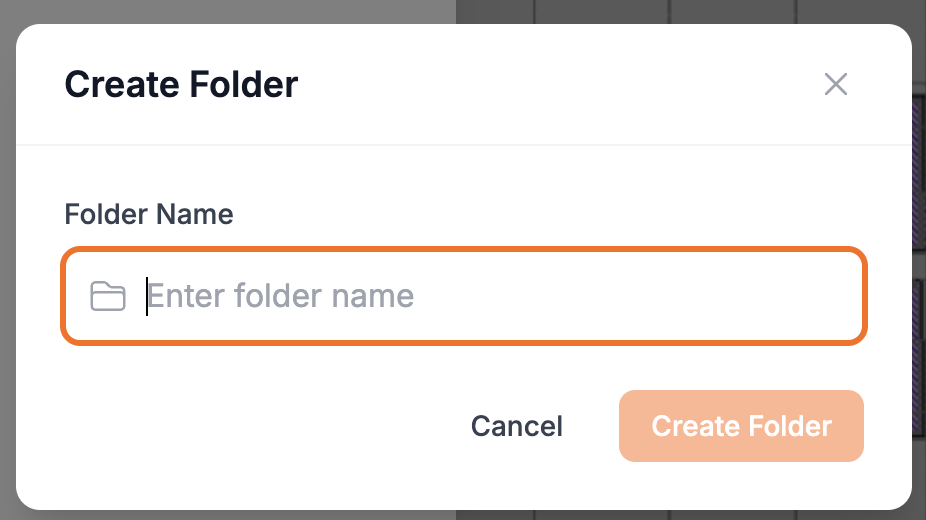
- Click the + button in the Folders section of the sidebar
- Enter a folder name
- Click Create
Moving Projects to Folders
Single project:
- Use bulk selection mode (checkbox)
- Click Move dropdown
- Select the destination folder
Multiple projects:
- Enter selection mode by clicking any project's checkbox
- Select additional projects
- Click Move dropdown
- Choose the folder (or "No Folder" to unfile)
Folder Views
The sidebar shows:
- All Projects - Every project regardless of folder
- Unfiled - Projects not in any folder
- Your folders - Click to filter by folder
Folder names display a project count badge showing how many projects they contain.
Editing Folders
- Hover over a folder name
- Click the three-dot menu
- Select Edit to rename or Delete to remove
INFO
Deleting a folder moves its projects to Unfiled. The projects themselves are not deleted.
Tags
Tags provide flexible, cross-cutting categorization. A project can have multiple tags, and you can filter by multiple tags simultaneously.
Creating Tags
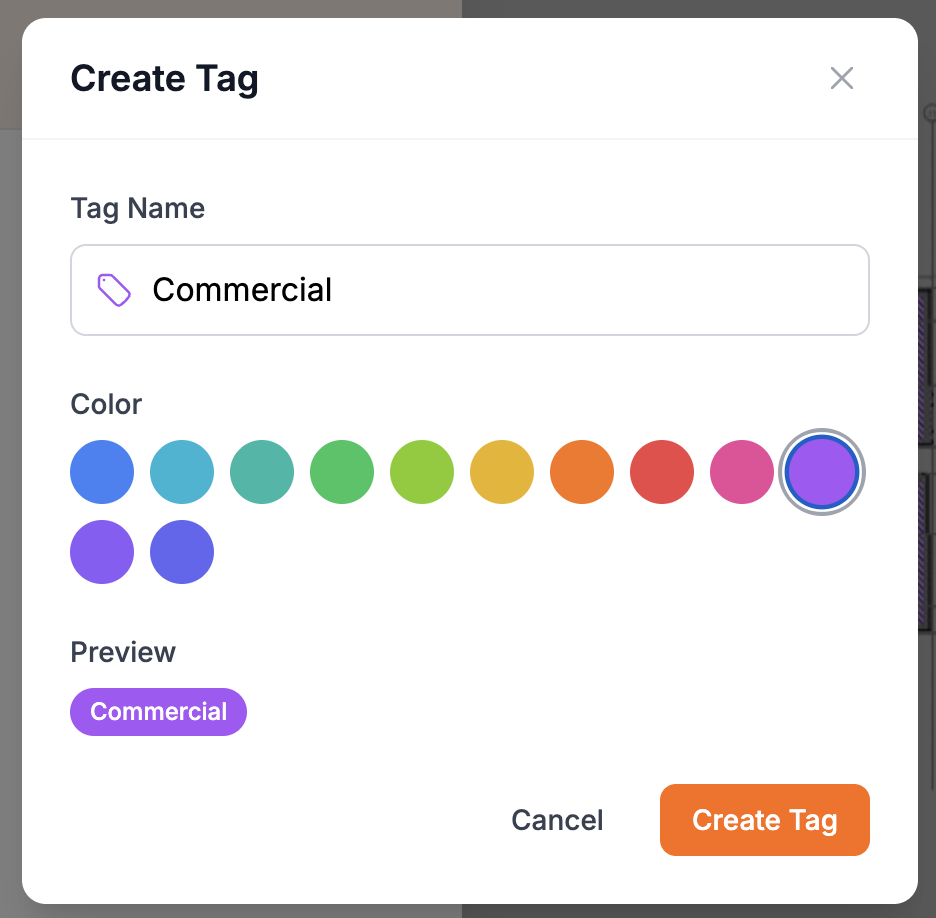
- Click the + button in the Tags area
- Enter a tag name
- Choose a color from the palette
- Preview shows how the tag will appear
- Click Create Tag
Applying Tags
To a single project:
- Enter selection mode
- Select the project
- Click the Tag dropdown
- Click a tag to apply it
To multiple projects:
- Select multiple projects using checkboxes
- Click the Tag dropdown
- Choose a tag to apply to all selected projects
Filtering by Tags
Click tag chips in the filter bar to show only projects with that tag:
- Selected tags highlight
- Click again to remove the filter
- Multiple tags show projects matching ANY selected tag
Editing Tags
- Click a tag chip while in the tag filter area
- Right-click or use the menu to edit or delete
WARNING
Deleting a tag removes it from all projects but does not delete the projects themselves.
Archiving Projects
Archive completed projects to keep your active list clean while preserving your work.
How to Archive
Single project:
- Hover over a project and click the archive icon
Multiple projects:
- Select projects using checkboxes
- Click Archive in the selection bar
Viewing Archived Projects
- Click Archive in the folder sidebar
- The archive shows:
- All archived projects
- Total archived storage size
Restoring Archived Projects
- Open the Archive view
- Click the unarchive icon on any project (archive icon with X)
- The project returns to its previous folder (or Unfiled)
TIP
Archived projects do not appear in folder counts or "All Projects" view unless you explicitly view the Archive.
Deleting Projects
To permanently delete a project:
- Hover over the project in the drawer
- Click the trash icon
- Confirm the deletion
Permanent Action
Deleted projects cannot be recovered. All PDFs, detections, zones, and annotations are permanently removed.
Bulk Operations
When you have many projects to manage, use bulk operations:
- Enter selection mode - Click any project's checkbox
- Select projects - Click additional checkboxes
- Choose action:
- Move - Move all selected to a folder
- Tag - Apply a tag to all selected
- Archive - Archive all selected
- Exit selection mode - Click Cancel or complete the operation
Team vs Personal Projects
If you have a Team subscription, you'll see separate project lists:
- Personal workspace (orange icon) - Your individual projects
- Team workspace (purple icon) - Shared team projects
Use the workspace toggle in the header to switch between views. The Projects drawer reflects your current workspace context.
Auto-Save
Projects save automatically every 30 seconds. You can also:
- Press Ctrl+S (Cmd+S on Mac) to save immediately
- Watch the save indicator in the header for status
See Save Indicator for more details on save status.
Quick Reference
| Action | How To |
|---|---|
| Rename project | Click project name in context bar |
| Add PDF | Click + Add in tab bar |
| Remove PDF | Click trash icon on tab |
| Reorder PDFs | Drag and drop tabs |
| Open drawer | Click folder icon or Projects button |
| Search | Type in search bar |
| Create folder | Click + in Folders sidebar |
| Create tag | Click + in Tags area |
| Archive | Click archive icon or bulk select |
| Delete | Click trash icon, then confirm |
Next Steps
- PDF Upload - Uploading and selecting pages
- Sharing Projects - Share view-only links
- Export - Export marked-up PDFs and CSV data