
Appearance
Symbol Takeoff 
Detect and count electrical symbols on your PDF plans. The symbol system uses pattern-matching rules to automatically find symbols, with manual stamping for anything the rules miss.
Overview
Symbol takeoffs help you:
- Auto-detect symbols using text pattern rules
- Manually stamp symbols the rules don't catch
- Organize by type (lighting, power, fire, data, etc.)
- Filter with zones to get counts by area
The Symbol Takeoff Panel
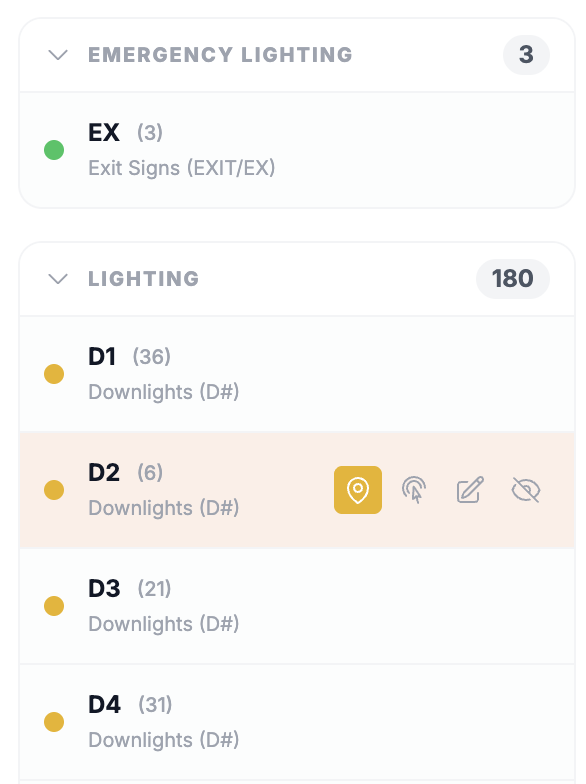
The right-side panel shows your detection rules grouped by type, with counts for each:
Row Actions
When you hover over a symbol row, action buttons appear:
| Button | Icon | Action |
|---|---|---|
| Locate |  | Jump to and highlight all symbols of this type on the PDF |
| Stamp |  | Manually stamp a new detection of this type |
| Edit |  | Edit the rule settings (name, pattern, color, etc.) |
| Hide |  | Toggle visibility of this symbol type on the PDF |
Quick Navigation
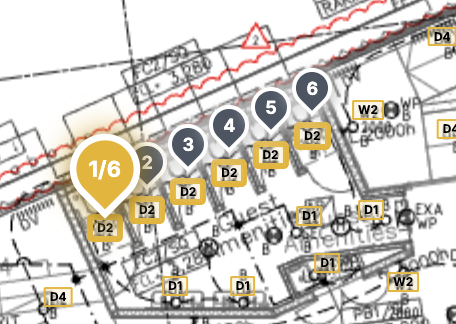
Click the Locate button to instantly pan to symbols and highlight all instances of that type across the current page.
Understanding Symbol Concepts
Rules vs Detections
- Detection Rules define what to look for (e.g., pattern "2A" for downlights)
- Detections are the actual symbols found on the PDF matching those rules
One rule can match many detections. For example, a "Downlight" rule matching "2A" might find 50 symbols across your drawings.
Adding Symbols
There are two ways to add symbols to your takeoff:
| Method | How | Best For |
|---|---|---|
| Rules | Define a text pattern to auto-detect | Consistent symbol labels (2A, GPO, etc.) |
| Manual | Stamp tool to click and place | Missing symbols, graphical-only symbols |
Symbol Types
Plan Count organizes symbols into categories. Choose the type that best matches your symbol - this affects how symbols are grouped in the takeoff panel, legend, and CSV exports.
| Type | Description | Example Symbols | When to Use |
|---|---|---|---|
| Lighting | General lighting fixtures | Downlights, pendants, battens, fluorescents | Standard interior/exterior lighting |
| Emergency Lighting | Emergency/exit lighting | Exit signs, emergency battens, egress lights | Life safety lighting systems |
| Lighting Control | Switches and dimmers | Light switches, motion sensors, dimmers | Anything that controls lights |
| Power | Power outlets and points | GPOs, data/power combos, floor boxes | General power distribution |
| Fire | Fire detection and alarms | Smoke detectors, sounders, strobes, pull stations | Fire alarm and detection systems |
| Data | Data and communications | Data points, TV outlets, access points | Network and communication infrastructure |
| Unknown | Uncategorized symbols | Custom items, misc equipment | Symbols that don't fit other categories |
Choosing the Right Type
The type you choose doesn't affect detection - it's purely for organization. If you're unsure, use Unknown and change it later. Grouping similar items helps when reviewing takeoffs and generating reports.
Detection Rules
How Rules Work
- Each rule has a text pattern (regular expression)
- Plan Count extracts all text from your PDF
- Text matching the pattern becomes a detection
- Detections display at the text's position on the PDF
Creating a Rule
- Click the Symbol tab in the takeoff panel
- Click + Add Rule
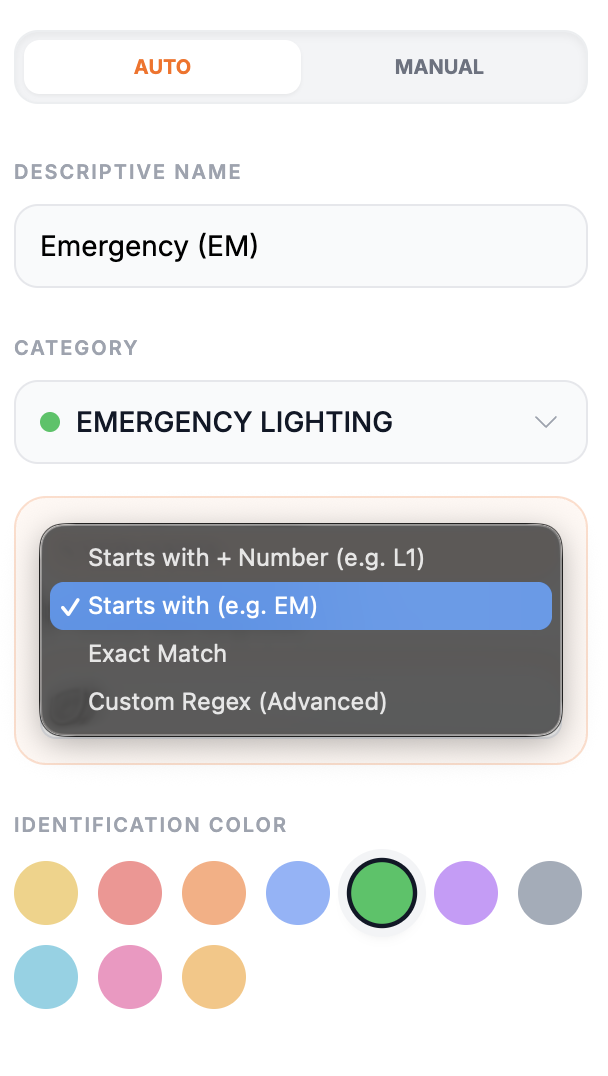
- Fill in the rule details:
| Field | Description |
|---|---|
| Name | Descriptive name shown in takeoff panel and exports (e.g., "Downlight 2A") |
| Type | Category from dropdown - affects grouping and legend organization |
| Pattern | Text to match in the PDF (e.g., 2A or GPO). Leave empty for manual-only rules |
| Label | Short display label shown on detections (optional, defaults to pattern) |
| Color | Visual color for detection rectangles on the PDF |
Pattern Examples
| Symbol | Pattern | Notes |
|---|---|---|
| Downlight 2A | 2A | Exact match |
| Any GPO | GPO | Matches GPO, GPO1, GPO2, etc. |
| Exit signs | EXIT | Case-sensitive |
| Emergency lights | E[0-9] | Regex: E followed by digit |
| All A-series | [0-9]A | Regex: digit followed by A |
Pattern Tips
- Patterns are case-sensitive (most PDFs use uppercase)
- Use exact text for precise matching
- Use regex for flexible matching (e.g.,
[0-9]+Afor 1A, 2A, 10A)
Learning Regex
For more complex patterns, these resources can help:
- regex101.com - Test patterns with real-time explanations
- RegexOne - Interactive tutorial for beginners
- MDN Regular Expressions Guide - Comprehensive reference
Auto-Discovered Rules
When you upload a PDF, Plan Count can suggest rules based on repeated text patterns:
- Upload your PDF
- Click Discover Rules in the Symbol tab
- Review suggested patterns
- Enable the ones you want to use
Editing a Rule
- Click the pencil icon on any rule
- Modify the settings
- Click Save
Changes immediately re-scan the PDF with the updated pattern.
Enabling/Disabling Rules
- Toggle the switch on any rule to enable or disable it
- Disabled rules don't detect symbols but keep their settings
- Useful for temporarily hiding a symbol type
Deleting a Rule
Click the trash icon on a rule. This removes all detections from that rule.
Manual Stamping
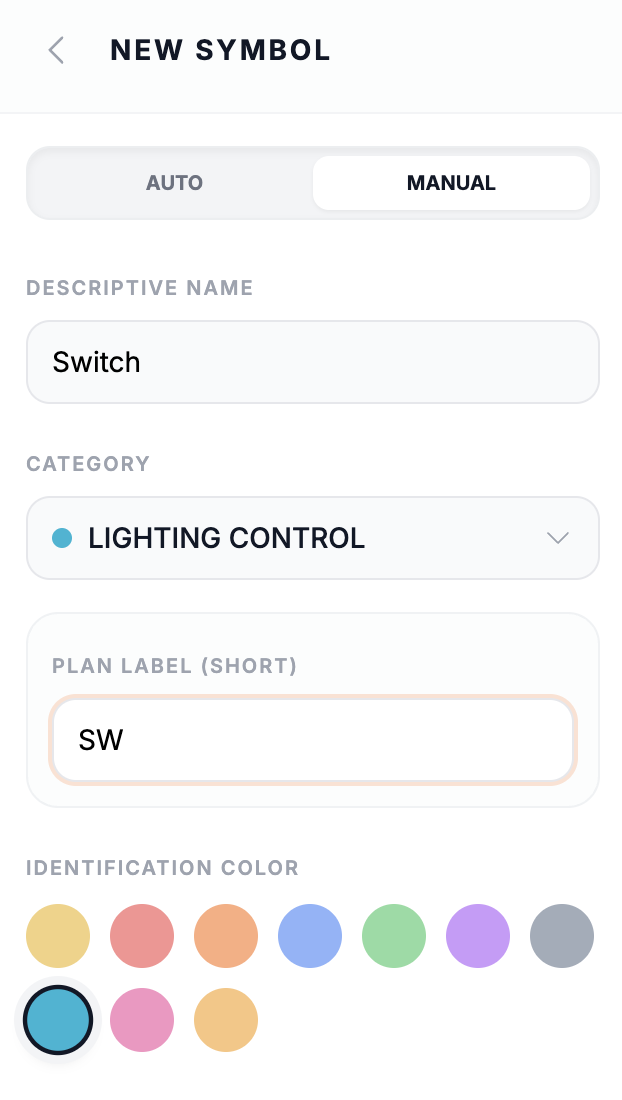
For symbols that rules can't detect (graphical symbols, inconsistent labels):
Using the Stamp Tool
- Select a rule in the Symbol tab
- Press A or click Stamp Tool
- Click on the PDF where the symbol is
- A detection is added at that location
INFO
Manual detections are tied to their rule. If you delete the rule, manual detections are also removed.
When to Use Manual Stamping
- Graphical symbols without text labels
- Damaged text the PDF can't extract
- Missing symbols the pattern didn't catch
- Custom symbols not in your rule patterns
Rule Settings
Name
Descriptive name shown in the takeoff panel and legend.
Type
Category that groups similar symbols. Affects:
- Grouping in the takeoff panel
- Legend organization
- CSV export categorization
Pattern
Regular expression to match text in the PDF:
- Leave empty for manual-only rules (stamp tool only)
- Use exact text for precise matching
- Use regex syntax for flexible matching
Label
Short text shown on detections in the PDF view:
- Defaults to the pattern if not set
- Keep short (2-4 characters) for readability
- Shown inside detection rectangles
Color
Visual color for this rule's detections:
- Pick from the color palette
- Helps distinguish symbol types
- Used in PDF export and legend
Viewing Symbol Counts
In the Symbol Tab
The takeoff panel shows:
- Rule list: All rules with counts
- Type grouping: Symbols grouped by type
- Total count: Sum of all detections
- Per-rule breakdown: Count per rule
On the PDF Canvas
Detections display as colored rectangles:
- Color matches the rule's color setting
- Label shows inside the rectangle
- Hover to highlight all symbols of that type
In the Legend
The on-screen legend shows:
- Symbol counts by type
- Color key for each rule
- Zone filtering if active
Filtered by Zone
When zones are active:
- Inclusion zones: Only count symbols inside
- Exclusion zones: Skip symbols inside
- Counts update in real-time as zones are edited
See Zones for zone details.
Removing Detections
Eraser Tool
- Press E or select the Eraser tool
- Click on any detection to remove it
- Or drag to erase multiple detections
Erased detections are tracked so they don't reappear when rules re-scan.
Bulk Removal
To remove all detections of a type:
- Disable or delete the rule
- All its detections are removed
Keyboard Shortcuts
| Key | Action |
|---|---|
A | Select STAMP tool (requires symbol selected) |
E |  Select ERASER tool Select ERASER tool |
V |  Select tool (for viewing) Select tool (for viewing) |
Delete | Delete selected detection |
Tips
Best Practices
- Start with auto-discovery to find common patterns
- Use specific patterns to avoid false matches
- Group by type for organized takeoffs
- Name rules clearly for readable exports
- Use manual stamping sparingly - rules are more maintainable
Workflow Example
- Upload PDF
- Run Discover Rules to find patterns
- Review and enable relevant rules
- Add custom rules for missing symbols
- Use Stamp tool for graphical symbols
- Draw zones for per-area counts
- Export PDF or CSV (see Export)
Common Issues
Too many false matches?
- Plan Count automatically filters out long text, sentences with punctuation, and multi-word phrases - this prevents legend descriptions from being detected
- Make the pattern more specific
- Use longer text strings
- Check if adjacent text is being matched
Missing detections?
- Check that the rule is enabled
- Verify the pattern matches exactly (case-sensitive)
- Try auto-discovery to see actual text in PDF
- Use manual stamping for graphical symbols
Detection in wrong position?
- This indicates PDF text extraction issues
- The text exists but is positioned oddly in the PDF
- Use manual stamping for accurate placement
Pattern not working?
- Test with a simple exact match first
- Escape special regex characters:
\. \( \) \[ \] - Remember patterns are case-sensitive