
Appearance
Split-Screen View
View two PDFs side by side. Compare legend sheets while counting, or reference architectural drawings alongside electrical plans.
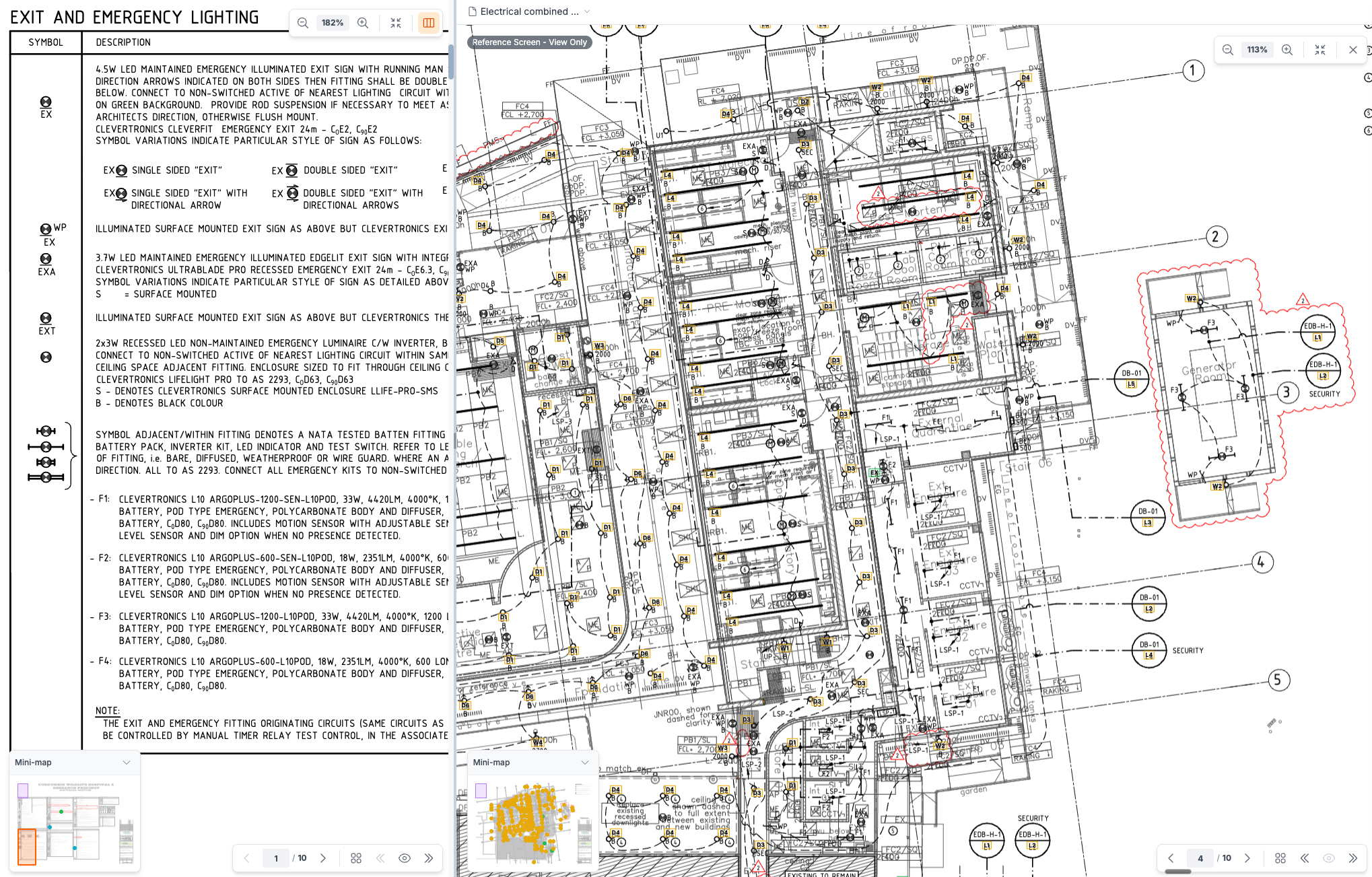
Overview
Split-screen divides your workspace into two panes:
- Main pane (left): Your active working area with full editing
- Reference pane (right): Read-only view for comparison
Enabling Split-Screen
- Click the split icon in the floating zoom controls (bottom-right)
- The screen divides into two panes
- Click again to disable
The split icon highlights orange when split-screen is active.
Using the Reference Pane
Select a PDF
The reference pane can show:
- A different page of the same PDF
- A completely different PDF from your project
Use the page navigation or PDF selector in the reference pane header.
Navigation
The reference pane supports:
- Pan: Click and drag
- Zoom: Scroll wheel or zoom controls
- Page navigation: Use the page controls
- Minimap: Navigate large drawings quickly
Read-Only Mode
The reference pane displays a "Reference Screen - View Only" badge. You cannot:
- Edit detections
- Draw zones
- Add annotations
- Modify any content
All editing happens in the main pane.
Resizing Panes
- Drag the divider between panes to adjust the split ratio
- The ratio persists across sessions
- Minimum pane width is enforced (300px)
Synchronized Content
Some settings sync from the main pane to the reference pane:
| Synced | Not Synced |
|---|---|
| Detection visibility | Current page |
| Zone visibility | Zoom level |
| Legend settings | Pan position |
| Excluded pages display | Tool selection |
Use Cases
Legend Reference
- Open split-screen
- Navigate reference pane to the legend sheet
- Work on electrical plans in main pane
- Cross-reference symbol definitions easily
Floor Comparison
- Open split-screen
- Set main pane to current floor
- Set reference pane to another floor
- Compare layouts and counts
Architectural Overlay
- Upload both electrical and architectural PDFs
- View architectural in reference pane
- Count symbols in main pane with context
Tips
- Use split-screen when you need to reference another page frequently
- The reference pane is perfect for legend sheets
- Disable split-screen when you need maximum drawing space
- Your split ratio preference is remembered
Keyboard Shortcuts
| Key | Action |
|---|---|
| (none) | Toggle via toolbar button |
INFO
Split-screen toggle is available via the toolbar button only. The keyboard shortcut may be added in a future update.