
Appearance
Ring Tool 
Measure circular objects on your PDF plans. Perfect for circular linear extrusion lighting (ring-shaped LED fixtures), as well as columns, pipes, and other round elements. The Ring tool calculates real-world diameters and circumferences based on your scale settings.
Overview
The Ring tool is part of the Linear measurement system but specialized for circular measurements. It's especially useful for measuring circular linear extrusion lighting where you need to know the total length of LED strip required for ring-shaped fixtures. Instead of drawing paths, you draw circles by clicking a center point and dragging to set the radius.
When to Use the Ring Tool
- Circular linear extrusion lighting: Ring-shaped LED fixtures where you need to calculate the total LED strip length (circumference)
- Columns: Measure structural or decorative columns
- Pipes and ducts: Circular HVAC ducts, plumbing pipes
- Circular features: Skylights, floor drains, round openings
Getting Started
Setting Up Scale
Before drawing rings, configure your PDF's scale for accurate measurements.
- Find the Scale section at the bottom of the control panel
- Set the ratio (e.g.,
100for 1:100 scale) - Choose Metric (meters) or Imperial (feet)
Important
Set your scale before drawing rings. Changing scale later will recalculate all measurements.
Creating a Ring Rule
Ring rules define the type of circular item you're measuring. They work similarly to linear rules but are kept in a separate category.
- Click the Linear tab in the takeoff panel
- Click + Add Linear Rule
- Check the Ring checkbox (or the rule type selector shows "Ring")
- Fill in the rule details:
- Name: Descriptive name (e.g., "Column", "Duct")
- Symbol: Short label, max 5 characters (e.g., "COL", "DCT")
- Color: Visual color for rings on the PDF
- Click Save
TIP
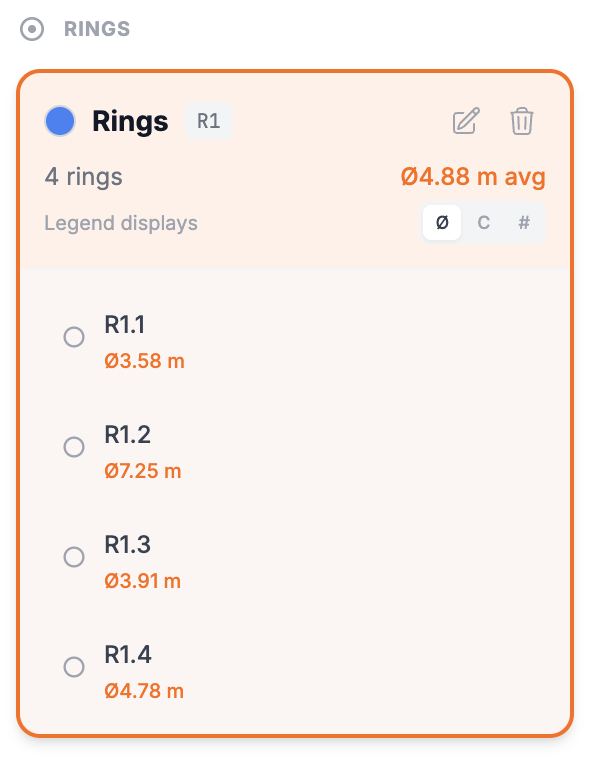
Ring rules appear in a separate "RINGS" section in the Linear tab, making them easy to find and manage.
Drawing Rings
Activating the Ring Tool
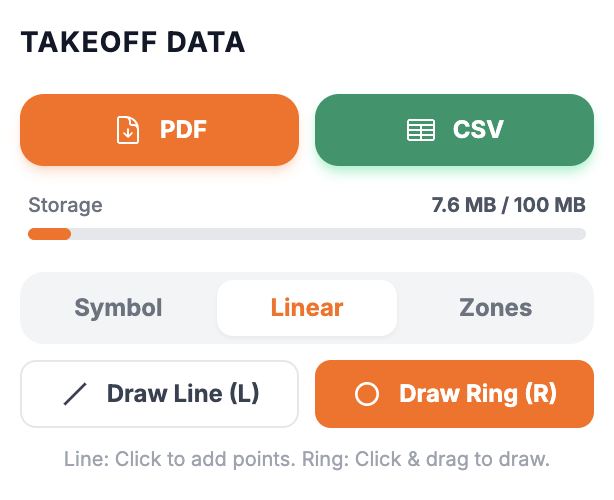
- Press R on your keyboard, or
- Click the Linear tab and click Draw Ring (R)
Drawing a Ring
- Click on the center point of the circular object
- Drag outward to set the radius
- Release to complete the ring
While drawing, the diameter measurement displays in real-time so you can size the ring accurately.
INFO
The helper text below the tool buttons reminds you: "Ring: Click & drag to draw."
Resizing a Ring
To adjust a ring's size after creation:
- Select the ring (click on it or use the Select tool)
- Drag the edge of the ring inward or outward
- The diameter recalculates automatically
Display Modes
Ring rules support three display modes to show measurements in different ways.
| Mode | Button | Shows | Example | Best For |
|---|---|---|---|---|
| Diameter | Ø | Circle diameter | Ø4.78 m | Sizing columns, pipes |
| Circumference | C | Circle perimeter | 15.02 m | Material wrapping, trim |
| Units | # | Quantity count | 4 rings | Counting fixtures |
Changing Display Mode
- Find your ring rule in the Linear tab
- Look for the Legend displays toggle buttons (Ø, C, #)
- Click the desired mode
The legend and exports update to reflect your chosen display format.
Ring Identifiers
Each ring is automatically assigned a unique identifier based on its parent rule's symbol:
- First Ring rule ring:
R1.1 - Second Ring rule ring:
R1.2 - First Column rule ring:
COL.1
These identifiers appear in:
- The on-screen legend
- The control panel list
- PDF and CSV exports
Viewing Results
In the Control Panel
The Linear tab shows ring rules in a dedicated section:
- Ring count: Number of rings using this rule
- Average diameter: Mean diameter across all rings (in Diameter mode)
- Total circumference: Sum of all circumferences (in Circumference mode)
Expand a rule to see individual rings with their measurements.
In the Legend
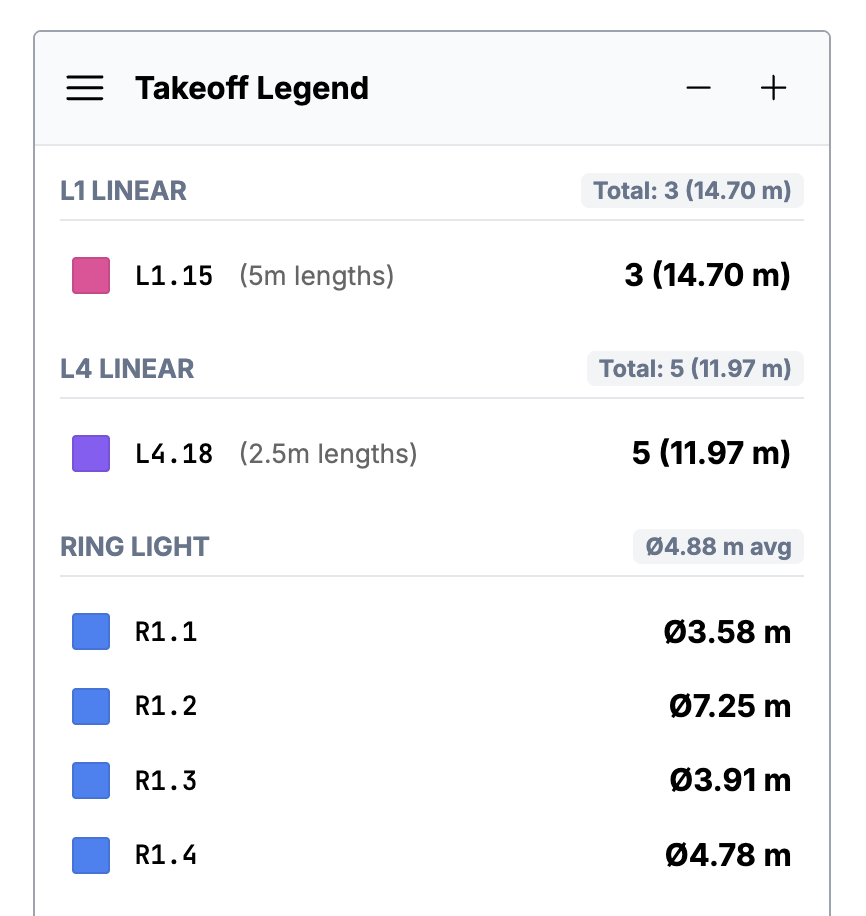
When the legend is visible:
- Ring rules appear as a separate group
- Header shows average diameter (Ø4.88 m avg) or total based on display mode
- Individual rings listed with their diameter or circumference
- Color swatch matches the ring's assigned color
On the PDF Canvas
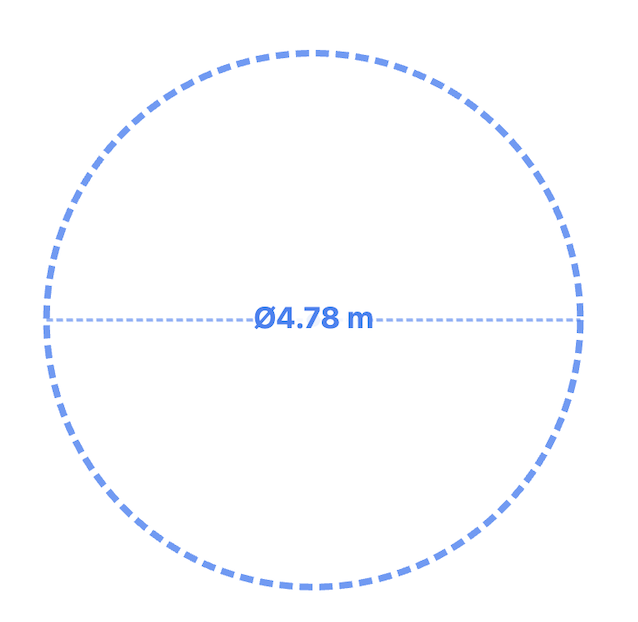
Rings display as dashed circles matching the rule's color. When selected:
- The ring outline highlights
- Diameter line shows across the center
- Edge can be dragged to resize
In PDF Export
Exported PDFs include:
- All rings drawn on each page as dashed circles
- Legend with ring measurements grouped by rule
- Per-ring breakdown with diameters or circumferences
In CSV Export
Ring measurements export with:
- Summary: Rule name, symbol, ring count, average diameter
- Detail: Ring identifier, diameter, circumference
Keyboard Shortcuts
| Key | Action |
|---|---|
R | Activate RING tool |
L | Switch to LINEAR tool (for paths) |
V |  Switch to Select tool Switch to Select tool |
Delete | Delete selected ring |
Escape | Cancel / Deselect |
Tips and Best Practices
Drawing Accurate Rings
- Center first: Click precisely on the center of the circular object
- Use the diameter display: Watch the real-time measurement while dragging
- Zoom in: For small objects, zoom in before drawing for precision
- Adjust after: You can always resize by dragging the edge
Organizing Ring Rules
- Create separate rules for different object types (columns vs. lights)
- Use clear symbols: Short codes that identify the object (COL, LGT, DCT)
- Choose distinct colors: Makes it easy to identify rings visually on the plan
Common Use Cases
Structural columns:
- Create a "Column" rule with symbol "COL"
- Use Diameter mode to verify column sizes match specifications
Round light fixtures:
- Create a "Light Fixture" rule with symbol "LGT"
- Use Units mode (#) for counting total fixtures
Circular ducts:
- Create a "Duct" rule with symbol "DCT"
- Use Diameter mode to identify duct sizes for ordering
Troubleshooting
Ring not appearing?
- Make sure a ring rule exists and is selected
- Check that you're in RING tool mode (press R)
- Verify you clicked and dragged (not just clicked)
Diameter seems wrong?
- Verify your scale setting matches the PDF's actual scale
- Check the scale ratio is entered correctly
Can't resize a ring?
- Make sure the ring is selected first
- Drag from the edge of the circle, not the center
Ring rule not showing?
- Ensure the rule has the "Ring" type enabled
- Check that the rule is enabled (toggle switch)
Related Features
- Linear Measurements - Measure paths and cable runs
- Linear Tool - Draw linear paths
- Zones - Area measurements for floor space